AI assistant
The AI assistant is a prompt panel inside the Stealth script editor. You type a request — “loot corpses within 2 tiles”, “explain this block” — and Stealth runs your own AI CLI agent (Claude Code, Codex CLI, Gemini CLI, a local model in ollama, …), feeds it your prompt together with the relevant context, and shows the answer. Code never goes straight into your script: it arrives in a preview with Apply / Cancel.
Stealth is not an AI provider. It has no API keys, stores no credentials, and does not proxy anything through our servers. You pay your provider with your own subscription, you log in with your own agent, and Stealth simply launches that agent as a child process.
AI-ассистент — это панель промта внутри редактора скриптов Stealth. Вы пишете запрос — «лутать трупы в радиусе 2», «объясни этот блок» — а Stealth запускает вашего собственного CLI-агента (Claude Code, Codex CLI, Gemini CLI, локальную модель в ollama, …), передаёт ему промт вместе с нужным контекстом и показывает ответ. Код никогда не попадает в скрипт напрямую: он приходит в превью с кнопками Apply / Cancel.
Stealth не является AI-провайдером: он не хранит ключей и учётных данных и ничего не проксирует через наши серверы. Вы платите провайдеру своей подпиской, логинитесь своим агентом, а Stealth лишь запускает этот агент дочерним процессом.
script editor → prompt + context → your CLI agent → answer → preview → editor
| Not supported | Why |
|---|---|
| API keys inside Stealth | The whole point is your own subscription and your own login. Stealth keeps no secrets. |
| Inline completions / ghost text | A different feature with a different protocol. |
| Direct editing by Stealth | Agent responses are applied to the editor only through Preview. Direct file operations exposed by a CLI are controlled by that CLI’s configuration. |
| PascalScript engine | Pascal tabs require the DWS engine (see Limits). |
| Android | The panel is hidden: there is no CLI agent to run on the phone. |
- Desktop Stealth — Windows, Linux or macOS.
- A CLI agent, installed and already logged in — see Installing and logging in the agent.
- For Pascal tabs: the script engine must be DWS (Settings → Script Engine). Python (py_stealth) tabs work regardless of that setting.
- A loaded character — only for the optional compile check of the draft; everything else works without one.
Для Pascal-вкладок нужен движок DWS; для Python-вкладок настройка движка роли не играет. Загруженный персонаж нужен только для необязательной проверки компиляции черновика.
Stealth does not install the agent: you need the CLI of one of the supported providers on this computer. Install the one you have a subscription or an account for:
Stealth не устанавливает агента: на компьютере нужен CLI одного из поддерживаемых провайдеров. Поставьте того, у кого у вас есть подписка или аккаунт:
| Agent | Install |
|---|---|
| Claude Code | Windows (PowerShell): irm https://claude.ai/install.ps1 | iexmacOS / Linux: curl -fsSL https://claude.ai/install.sh | bashor, with Node.js: npm install -g @anthropic-ai/claude-code |
| Codex CLI | npm install -g @openai/codex (needs Node.js) |
| Gemini CLI | npm install -g @google/gemini-cli (needs Node.js) |
| ollama (local) | the installer from ollama.com/download, then ollama pull <model> |
After installing, open a new terminal (and restart Stealth) so the updated PATH is picked up; Stealth also looks in the agents’ usual install folders, see Detection.
После установки откройте новый терминал (и перезапустите Stealth), чтобы подхватился обновлённый PATH; Stealth также смотрит в обычные каталоги установки агентов — см. Автодетект.
Stealth never asks for a password. Run the agent once in a terminal, in the same folder Stealth will use — the first run does the onboarding and the login:
Stealth никогда не спрашивает пароль. Запустите агента один раз в терминале, в том же каталоге, который будет использовать Stealth: первый запуск проводит онбординг и логин:
claude
/login
Two things routinely cost people an hour:
- A Claude Desktop / web login is not a CLI login. The
claudecommand has its own credentials; log in from the terminal even if the desktop app is already signed in. - The very first run is interactive (onboarding questions, a browser window). If you skip it, the first request from Stealth just sits there until the timeout.
Две вещи регулярно съедают у людей час:
- Логин в Claude Desktop / в браузере — это не логин CLI. У команды
claudeсвои учётные данные: залогиньтесь из терминала, даже если десктопное приложение уже авторизовано. - Самый первый запуск интерактивен (вопросы онбординга, окно браузера). Если его пропустить, первый же запрос из Stealth просто провисит до таймаута.
When the token expires later, the assistant says so explicitly — see Troubleshooting.
Open the settings window (the gear icon in the upper right corner of the main Stealth window) and switch to the AI Assistant tab. See also the Settings window manual.
Откройте окно настроек (шестерёнка в правом верхнем углу главного окна Stealth) и перейдите на вкладку AI Assistant.
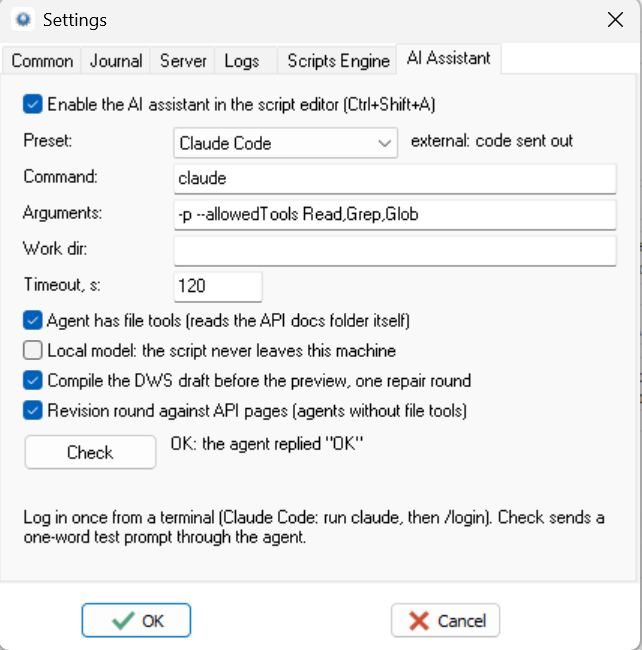
| Control | Meaning |
|---|---|
| Enable the AI assistant in the script editor (Ctrl+Shift+A) | Master switch. Off by default. An external configuration must pass the privacy warning. |
| Preset | A named set of the five fields below. Picking one fills them in. (custom) is not a preset: it means the fields match none of them. |
| badge | local: code stays here or external: code sent out — mirrors the Local model flag. |
| Command | The agent binary: a bare name (claude) is resolved through PATH — on Windows with PATHEXT, so an npm shim claude.cmd is found — and then through the known install locations. A full path also works. |
| Arguments | Arguments for the agent. Double quotes group an argument; "" on its own passes an empty argument, and "" inside quotes a literal quote ("{""key"":1}" gives {"key":1}). Backslashes are always literal, so a path ending in \ works as written: "C:\my scripts\". No shell variable expansion is performed. The prompt itself is not an argument: it is fed through stdin. |
| Agent workspace dir | Working directory of the agent. Empty = the Stealth folder (the apidocs/ tree lives there). A relative path is resolved from the Stealth folder. This directory is always shown in the privacy warning; it is not necessarily a filesystem sandbox. |
| Timeout, s | How long Stealth waits for the answer before giving up and killing the process tree. 0 means no limit — then only Cancel stops the agent. |
| Agent can read local files | Declares that this configuration is file-aware: Stealth passes the agent the path to the API docs, and you can ask it to inspect other local scripts available to the CLI. This checkbox does not grant or revoke filesystem access; actual access is controlled by Arguments and the CLI configuration, as the permanent hint below it says. |
| Local model: the script never leaves this machine | Marks the provider as local. Sets the badge and suppresses the privacy warning. |
| Compile the DWS draft before the preview, one repair round | Compiles the generated code before showing the preview; on errors, asks the agent to fix them once. DWS only. |
| Revision round against API pages (agents without file tools) | After the draft is generated, sends the API pages of the methods it actually used and asks the agent to double-check them. Runs only when file tools is off. |
| Check | Sends a one-word test prompt (Reply with exactly one word: OK) through the agent and reports what came back. It can contact an external provider without the privacy dialog because it sends no user prompt, script or surrounding code. |
| status line | Detection or check result. Three lines fit; the full verdict is in the tooltip. |
| Preset | Command | Arguments | Timeout | File tools | Local |
|---|---|---|---|---|---|
| Claude Code | claude |
-p --allowedTools Read,Grep,Glob |
120 | yes | no |
| Codex CLI | codex |
exec --sandbox read-only --skip-git-repo-check - |
120 | yes | no |
| Gemini CLI | gemini |
(none) | 120 | yes | no |
| ollama (local) | ollama |
run qwen2.5-coder:7b |
300 | no | yes |
Presets are data, not code: every field can be edited, and your edits simply switch the label to (custom). File access and direct file operations are ultimately governed by the selected CLI and its own configuration; Stealth only applies the returned answer to the editor through Preview.
Пресеты — это данные, а не код: любое поле правится, а правка просто переводит метку в (custom). Доступ к файлам и прямые файловые операции определяются выбранным CLI и его собственной конфигурацией; сам Stealth применяет полученный ответ к редактору только через Preview.
Note. The Claude Code preset was verified live. The Codex CLI and Gemini CLI presets are assembled from the vendors’ documentation and were not run end to end — treat them as starting points and adjust the command line for your version. The ollama model name is an example: put in whatever model you actually pulled.
Замечание. Пресет Claude Code проверен вживую. Пресеты Codex CLI и Gemini CLI собраны по документации вендоров и сквозь не прогонялись — считайте их заготовками и правьте под свою версию. Имя модели в ollama — пример: подставьте ту, которую скачали.
Stealth does not pick the model. It launches your agent, and the agent answers with whatever model it would use for a new session — its own default. There is no model list and no model picker anywhere in Stealth, and switching a preset switches the agent, not the model.
If your CLI accepts a model flag, add it to Arguments yourself — that is the only way to pin one. Claude Code, for example, takes --model with an alias (fable, opus, sonnet) or a full model name:
Stealth не выбирает модель. Он запускает вашего агента, и тот отвечает той моделью, с которой начал бы новую сессию, — своей моделью по умолчанию. Никакого списка моделей и выбора модели в Stealth нет, а смена пресета меняет агента, а не модель.
Если ваш CLI принимает флаг модели, допишите его в Arguments сами — другого способа зафиксировать модель нет. Claude Code, например, принимает --model с алиасом (fable, opus, sonnet) или полным именем модели:
-p --model sonnet --allowedTools Read,Grep,Glob
For a local model there is nothing to add: the ollama preset already names it in run <model>.
Для локальной модели дописывать нечего: пресет ollama и так называет её в run <модель>.
When the tab opens (and after every change of Command), Stealth resolves the binary — first through PATH, then through the known install locations of the supported agents — and writes the result into the status line. Nothing is stored in the INI: the path is resolved again at every launch, because agents move their binaries between versions.
При открытии вкладки (и после каждой правки Command) Stealth ищет бинарь — сперва по PATH, затем по известным местам установки поддерживаемых агентов — и пишет результат в строку статуса. В ini путь не сохраняется: он резолвится заново на каждом запуске, потому что агенты переносят бинарь между версиями.
| Status line | What it means |
|---|---|
Found: <path> |
The binary that will actually be launched. |
Not found: … Not installed? See stealth.od.ua/manuals/AIAssistant/ or enter the full path. |
Neither PATH nor the known locations have it. If the agent is not installed, see Installing and logging in the agent; if it is installed somewhere else, put the full path into Command. |
Agent not found: … Not installed? … |
The same, reported by Check. |
OK: the agent replied "…" |
Check passed: the agent runs, is logged in, and answers. |
Not logged in or out of quota: … log in from a terminal |
The agent started but replied with an auth/quota error. |
No reply within N s. Run the agent once in a terminal … |
Timeout — most often the interactive first run was never done. |
Agent exited with code N: … |
The agent failed; the tail of its output follows. Usually a wrong argument. |
Empty reply from the agent / Unexpected reply: … |
It ran and answered, but not with the expected word. Check the arguments — a non-interactive/“print” mode is usually required. |
The check uses a shortened timeout (at most 90 s), because a one-word answer should not take longer.
Everything on the tab is stored in Stealth.ini. Editing the file by hand is fine — but only while Stealth is closed: it rewrites the whole INI when settings are saved.
Всё со вкладки хранится в Stealth.ini. Править файл руками можно, но только при закрытом Stealth: при сохранении настроек он переписывает ini целиком.
[AI]
Enabled=1
Preset=Claude Code
Command=claude
Args=-p --allowedTools Read,Grep,Glob
WorkDir=
TimeoutSec=120
CanReadFiles=1
IsLocal=0
CompileCheck=1
Revision=1
PrivacyFingerprint=<generated SHA-256 fingerprint>

[AI.Preset.My agent]
Command=D:\tools\myagent\agent.exe
Args=--print
TimeoutSec=180
CanReadFiles=0
IsLocal=1
Presetis the name whose fields the[AI]values are equal to; an empty value means(custom).PrivacyFingerprintrecords consent for the current externalCommand,Args,IsLocal,CanReadFilesand effectiveWorkDir. It is generated by Stealth; do not copy it between configurations.- Every
[AI.Preset.<Name>]section becomes a preset in both drop-downs. A section named after a built-in preset overrides that built-in one in place, so you can fix the shipped command line permanently. - There are no secrets in this section by design.
Open the panel in any of three ways:
Панель открывается тремя способами:
- Ctrl+Shift+A;
- the AI button on the Scripts: toolbar;
- the menu item — View → AI assistant on Windows, Options → AI assistant on Linux and macOS.
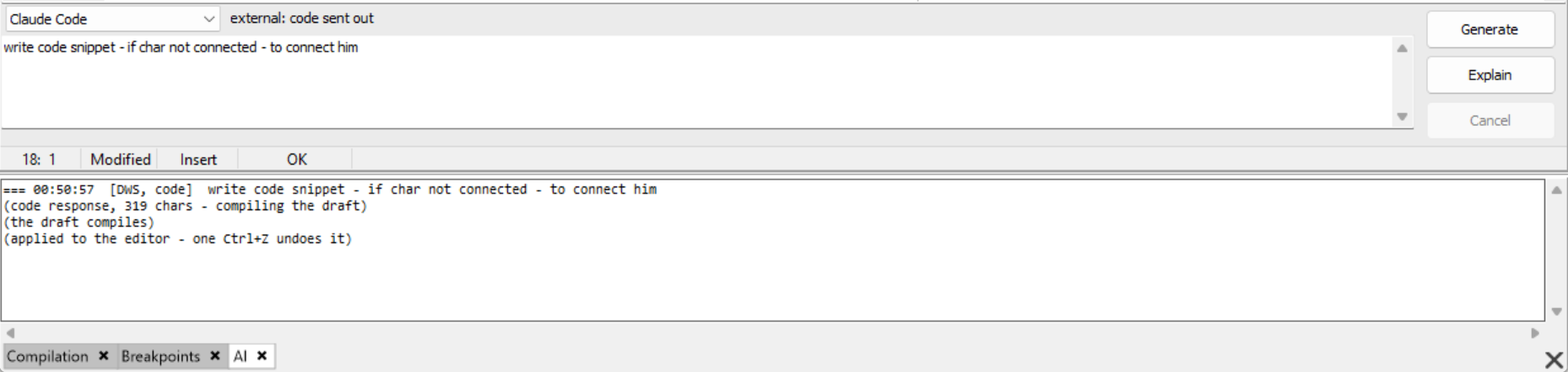
The panel sits under the editor: the preset drop-down with the local/external badge on top, the prompt box in the middle, the buttons on the right, the status line at the bottom.
Панель располагается под редактором: сверху выпадающий список пресетов с бейджем local/external, в центре поле промта, справа кнопки, внизу строка статуса.
| Action | What happens |
|---|---|
| Generate (or Ctrl+Enter in the prompt box) | Asks for code. The answer goes to the preview, and from there into the caret position or over the selection. |
| Explain | Asks for prose. The answer is shown in the AI output tab only — the editor is never touched. |
| Cancel | Drops the request and kills the agent’s process tree. The editor is untouched; the panel remains busy until the worker has actually stopped, so a second request cannot overlap it. |
| Esc | Hides the panel (the request keeps running). |
Selection or caret. If something is selected, that fragment is the payload and the result replaces the selection. If nothing is selected, Stealth sends the code around the caret (up to 12 KB) with an explicit marker at the insertion point, and the result is inserted at the caret.
Выделение или каретка. Если что-то выделено, этот фрагмент и есть полезная нагрузка, а результат заменяет выделение. Если выделения нет, Stealth отправляет код вокруг каретки (до 12 КБ) с явным маркером в точке вставки, и результат вставляется в каретку.
The preset drop-down in the panel is the same one as in the settings: switching it changes the active agent immediately and saves the change.
Only one request per editor window runs at a time.
Every code answer goes through a preview window titled AI result - <verdict>, where the verdict is compiled OK (also with (the script's own errors are below the draft)), N compile errors remain, no new compile errors (the script already had some) or preview (when the compile check is off or not applicable). Only errors the draft brought in are counted: errors your script already had without it are not blamed on the draft.
Каждый ответ с кодом проходит через окно превью с заголовком AI result - <вердикт>, где вердикт — compiled OK (в том числе с (the script's own errors are below the draft)), N compile errors remain, no new compile errors (the script already had some) или preview (когда проверка компиляции выключена или неприменима). Считаются только ошибки, которые принёс черновик: ошибки, которые были в скрипте и без него, черновику в вину не ставятся.
If the source script, selection or cursor changed while the agent was working, a warning appears above the code in Preview. Apply uses the current selection or cursor in the source tab. Any compile check used the original snapshot and does not validate the changed context.
Если за время запроса изменились исходный скрипт, выделение или каретка, над кодом в Preview появится предупреждение. Apply использует текущее выделение или каретку во вкладке-источнике. Проверка компиляции работала со снимком на момент запроса и не проверяла изменённый контекст.
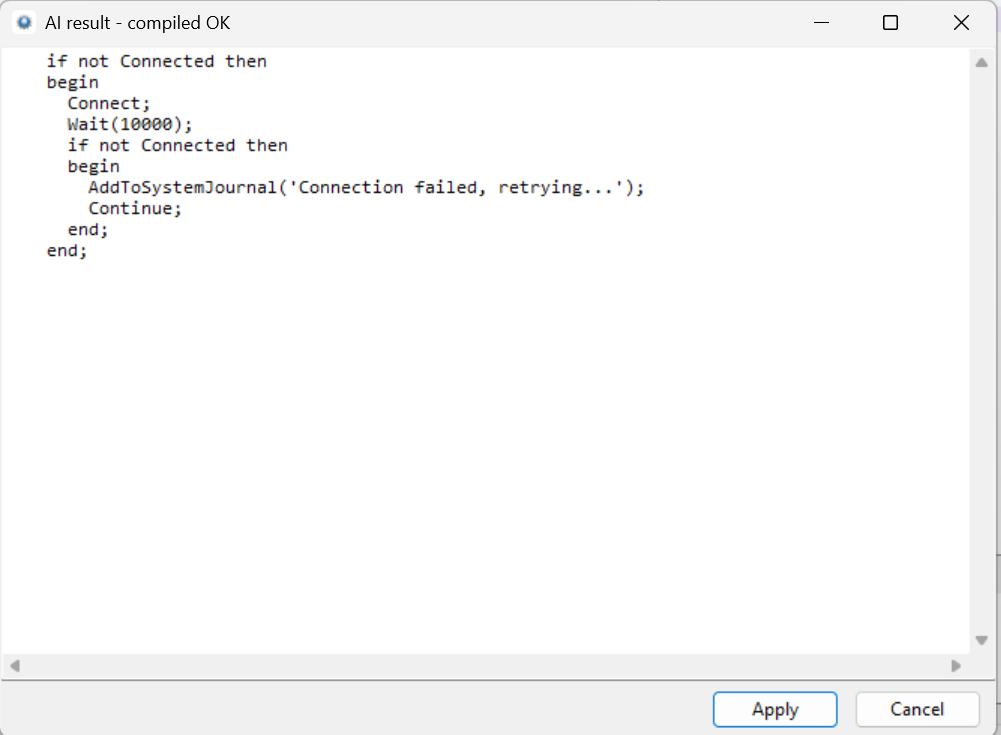
- The text is editable — fix a small thing right here, before applying.
- Copy copies the entire preview text, including your edits, without closing the window or changing the script. You can then close Preview and paste the code wherever you need it.
- Copy копирует весь текст превью, включая ваши правки, не закрывая окно и не меняя скрипт. Затем можно закрыть Preview и вставить код в нужное место.
- Apply writes it into the editor as a single undo step: one Ctrl+Z takes it all back.
- Cancel leaves the editor untouched.
- Results larger than 256 KB are not inserted (a note appears in the AI tab).
Every request writes a header — time, script type, mode, the first 120 characters of your prompt — and then the progress of the round trip:
Каждый запрос пишет заголовок — время, тип скрипта, режим, первые 120 символов промта — и дальше ход раунда:
| Line | Meaning |
|---|---|
(code response, N chars - revising it against the API pages of M methods) |
The revision round started (see below). |
(the revision changed the draft: … the original was:) |
The revision rewrote the draft; the original is printed so you can compare. |
(code response, N chars - compiling the draft) |
The draft is being compiled. First, once per request, the script is compiled as it was without the draft. |
(the script has N compile errors without the draft - only new ones are counted) |
Your script did not compile even before the draft; its errors are listed under the line. They are not blamed on the draft and are not sent to the repair round. |
(the draft compiles; the N errors already in the script are all below it) |
The compiler works top to bottom, so it got through the draft without errors before reaching the script’s own ones. This counts as a clean compile. |
(the draft compiles) |
Compiled cleanly. |
(the draft has N compile errors - asking the agent to fix it) |
One repair round follows; the first errors are listed above the line. Only errors the draft brought in are counted and sent. |
(+N already in the script without the draft, not counted) |
Under the error list: how many of the compiler’s errors were there before the draft. |
(the draft adds no compile errors; the N already in the script remain, so the check may be incomplete) |
The draft added nothing new, but some of the script’s own errors are above it (or in an include file). The compiler may stop at one of them before it reaches the draft, so the check proves less than a clean compile. No repair round. |
(N compile errors remain after the repair round - review carefully) |
The repair did not fix everything. The preview still opens — read it closely. |
(the revision round failed - …) / (the repair round failed - …) |
The extra round did not come back (no reply, timeout, expired login). The draft from the previous round is not thrown away: it goes to the compile check or straight to the preview. |
(N compile errors - no repair round, the agent already failed in this request) |
Same case, seen from the compiler’s side: the agent had already failed, so no further round is started. |
(API docs folder unavailable: …) |
Stealth could not write the docs folder for the agent (no write access, a full disk). The request still runs: the pages it needs are pasted into the prompt. |
(the script changed while the agent was working …) |
You edited the file during the request. The compile check uses the text as it was when you pressed Generate. |
(the cursor or the script moved since the request …) |
The insertion point is not where it was. The result goes where the cursor is now, while the compile check verified the old spot. |
(compile check skipped: no script pool - is a character loaded?) |
No character is loaded, so there is nothing to compile with. |
(compile check skipped: the pool declined - engine is not DWS) |
The engine is not DWS. |
(compile check skipped: the selection could not be located) |
The selection moved while the request was running. |
(applied to the editor - one Ctrl+Z undoes it) |
The result was applied. |
(preview cancelled - editor untouched) |
You cancelled the preview. |
(source tab is closed - result not applied) |
The tab the request came from was closed. |
A general-purpose model does not know the Stealth Script API, so Stealth supplies it. What exactly is sent depends on the Agent can read local files flag:
Модель общего назначения не знает Script API Stealth, поэтому его подкладывает сам Stealth. Что именно уходит — зависит от флага Agent can read local files:
| Flag | What the agent gets |
|---|---|
| on | The path to the local docs tree (apidocs/pascal or apidocs/python in the Stealth folder — on macOS that is the data folder, not the app bundle) plus the pages Stealth already picked. The agent reads only what it needs, so you pay for what was actually used. |
| off | The pages themselves, pasted into the prompt: methods recognized in your selection and prompt, capped at 6 full pages / 16 KB. If the folder is missing, the documentation built into Stealth is used and the AI tab says so once. |
You do not install the apidocs/ folder and it is not part of the download. The documentation is already inside Stealth, and the folder is written out of it on the first request that actually needs it — that is, only when Agent can read local files is on. It takes well under a second, appears in the Stealth data folder, and is refreshed by itself when an update brings newer documentation or when files in it go missing. With local-file access off it is never created at all.
Каталог apidocs/ не устанавливается и в поставку не входит. Документация уже внутри Stealth, а каталог разворачивается из неё при первом запросе, которому он действительно нужен, то есть только при включённом флаге Agent can read local files. Это занимает доли секунды, каталог появляется в каталоге данных Stealth и сам обновляется, когда обновление принесло свежую документацию или когда файлы в нём пропали. При выключенном доступе к локальным файлам он не создаётся вовсе.
On top of that there are two optional rounds, both on by default:
Сверх этого есть два необязательных раунда, оба включены по умолчанию:
- Revision (file tools off only) — the draft is scanned for the API methods it actually calls, their pages (and their See also neighbours) are sent back, and the agent is asked to re-check semantics and fix what is wrong. This is what catches “compiles fine, calls the wrong method”.
- Compile check (DWS only) — the draft is compiled before the preview, against a compile of the script without it, so errors the script already had are not blamed on the draft. On new errors the compiler messages plus the relevant API pages go back to the agent for one repair round; whatever comes out is shown in the preview with the verdict in the title.
Stealth itself sends your prompt, the selected fragment (or the code around the caret), the script type and the API pages/paths described above. It does not add profile, journal or shard data. When local-file access is enabled, the CLI agent may additionally read files available to it; the privacy warning shows its working directory and explicitly notes that Stealth cannot guarantee reads are limited to that directory.
Сам Stealth отправляет ваш промт, выделенный фрагмент (или код вокруг каретки), тип скрипта и описанные выше страницы/пути документации; данные профиля, журнала и шарда он не добавляет. Если разрешён доступ к локальным файлам, CLI-агент может дополнительно читать доступные ему файлы. В privacy warning показывается его рабочий каталог и прямо сказано, что Stealth не гарантирует ограничение чтения этим каталогом.
If you already run a local model (for example through ollama), pick the ollama (local) preset and set the model you have pulled — run <model> in Arguments.
Если у вас уже развёрнута локальная модель (например, через ollama), выберите пресет ollama (local) и укажите скачанную модель — run <модель> в поле Arguments.
What changes:
- The badge turns into
local: code stays hereand the privacy warning is not shown — nothing leaves the machine. - Agent can read local files is off (ollama has no file tools), so Stealth pastes the API pages itself and the revision round does the semantic checking. Keep the revision round on.
- The timeout is larger (300 s by default): local models are slower, especially on the first token.
Что меняется: бейдж становится local: code stays here, предупреждение о приватности не показывается; файловых инструментов у ollama нет, поэтому страницы API подклеивает сам Stealth, а семантику проверяет раунд ревизии — не выключайте его; таймаут больше (по умолчанию 300 с), потому что локальные модели медленнее.
- Stealth stores no credentials — no keys, no tokens, no password hashes — and takes no part in the login.
- Before an external configuration is used, Stealth names the provider and states what it sends. With local-file access enabled, it also shows the effective agent working directory and warns that reads may not be limited to it. Declining leaves the feature off or cancels the request.
- Consent is tied to
Command,Args,IsLocal,CanReadFilesand the effectiveWorkDir. Changing the provider, command line or working directory, switching from local to external, or enabling local-file access asks again. Disabling local-file access reuses the broader consent. The same check runs immediately before a request, so a manual INI edit does not bypass it. - The prompt is written to a temporary file, fed to the agent through stdin, and deleted afterwards — including on cancel and timeout.
- One subscription is one user. Sharing an agent account between people is a provider-side violation, not something Stealth can or should work around.
Stealth не хранит учётных данных и не участвует в логине. Перед использованием внешней конфигурации показывается предупреждение с именем провайдера и перечнем отправляемых данных. При доступе к локальным файлам оно также показывает фактический рабочий каталог агента и предупреждает, что Stealth не гарантирует ограничение чтения этим каталогом. Согласие привязано к Command, Args, IsLocal, CanReadFiles и фактическому WorkDir: смена провайдера, командной строки или каталога, переход с локального на внешний режим и включение доступа к файлам требуют нового подтверждения. Выключение доступа к файлам наследует более широкое согласие. Та же проверка выполняется прямо перед запросом, поэтому ручная правка INI её не обходит. Промт пишется во временный файл, скармливается агенту через stdin и затем удаляется — в том числе при отмене и таймауте.
| Symptom | Cause and fix |
|---|---|
AI assistant is disabled. Enable it in Settings > AI Assistant |
The master switch is off. Turn it on, pick a preset, press Check, then OK. |
AI assistant supports only the DWS engine. |
The tab is Pascal but the engine is PascalScript. Switch Script Engine to DWS in the settings. |
Failed to launch the agent: … |
The binary was not found. Most often the agent is simply not installed — see Installing and logging in the agent. If it is installed somewhere else, put the full path into Command and press Check. |
Agent timed out after N s. |
Usually the interactive first run was never done: launch the agent once from a terminal, in the same working directory. Otherwise raise Timeout. |
| The answer took two rounds and the second one failed | Nothing is lost: the draft from the first round goes to the preview, with a line in the AI tab saying which round failed. |
Hint: the agent is not authenticated (or out of quota). |
The token expired or the quota ran out. Log in from a terminal (claude, then /login) and retry. Remember: the desktop app’s login is a different one. |
(compile check skipped: no script pool - is a character loaded?) |
The compile check needs a loaded character. The result still opens in the preview, just unverified. |
| Nothing at all happens on Generate | The prompt box is empty, or a request is already running (Cancel first). |
| The agent answers in prose instead of code | Its arguments are missing the non-interactive/“print” mode. Compare with the built-in presets. |
-
PascalScript is not supported. Pascal tabs require the DWS engine.
-
The compile check needs a loaded character (it uses the script pool) and DWS. For Python tabs there is no compile check at all.
-
Cancel during the compile check only discards the result — the pool worker is not interrupted.
-
The compile check uses the position you started from. The cursor, the selection and the text are remembered when you press Generate. Apply still uses the current selection or cursor in the source tab. If that context changed, Preview warns you before applying; the AI tab also records the mismatch when you apply.
-
One request per editor window at a time.
-
The model is the agent’s own default — Stealth has no model picker; pin one with your agent’s flag in Arguments (see Which model is used).
-
The panel is desktop-only — it is not shown on Android or in console builds.
-
Windows
.cmd/.batsupport targets CLI wrappers forwarding%*to a native executable. CustomCALL,%~1processing or delayed expansion inside a batch file may change arguments. Prefer the native executable in that case. Batch arguments containing NUL or line breaks, and escaped commands exceeding 8191 characters, are rejected before launch. -
PascalScript не поддерживается — Pascal-вкладкам нужен движок DWS.
-
Проверке компиляции нужен загруженный персонаж (используется пул скриптов) и DWS; для Python-вкладок её нет вовсе.
-
Отмена во время компиляции лишь отбрасывает результат — воркер пула не прерывается.
-
Проверка компиляции идёт по позиции на момент запроса: каретка, выделение и текст запоминаются при нажатии Generate, поэтому сдвинутая за время ответа каретка проверку не портит. Применяется результат всё равно туда, где каретка сейчас, — если это другое место, вкладка AI об этом говорит.
-
Один запрос на окно редактора за раз.
-
Модель — та, что стоит по умолчанию у агента: своего выбора модели в Stealth нет, зафиксировать её можно только флагом агента в Arguments (см. Какая модель используется).
-
Панель только для десктопа — на Android и в консольных сборках её нет.
-
На Windows
.cmd/.batподдерживаются как CLI-обёртки с пересылкой%*нативной программе. СобственныеCALL, обработка%~1или delayed expansion внутри batch могут изменить аргументы; в таком случае укажите нативный исполняемый файл. NUL/переводы строк в аргументах и команды длиннее 8191 символа после экранирования отклоняются до запуска batch.