Atom
Atom is a built-in Stealth DLL plugin that bridges a UO client and the Stealth core — it is what lets Stealth see and drive a connected client. It is not a UO client of its own; it works alongside whatever client you use and independently of other bridge plugins (such as the ClassicUO or Orion connectors).
Each connected client gets its own Atom window, titled with the character’s name (e.g. “Vizitor - Atom”). The window is a control panel: a row of tabs for character info, object bookmarks, overhead captions, hotkeys, and script control. You can disable the Atom window entirely in Stealth’s settings if you don’t need it.
Atom — это встроенный DLL-плагин Stealth, связывающий UO-клиент с ядром Stealth: именно он позволяет Stealth «видеть» и управлять подключённым клиентом. Это не отдельный клиент UO; он работает вместе с любым вашим клиентом и независимо от других плагинов-мостов (например, коннекторов ClassicUO или Orion).
Каждый подключённый клиент получает своё окно Atom с именем персонажа в заголовке (например, «Vizitor - Atom»). Окно — это панель управления: ряд вкладок с информацией о персонаже, закладками объектов, подписями над объектами, хоткеями и управлением скриптами. Окно Atom можно полностью отключить в настройках Stealth, если оно не нужно.
UO client ⇄ Atom (bridge plugin) ⇄ Stealth core ⇄ shard
The Atom window has seven tabs:
Окно Atom состоит из семи вкладок:
| Tab | Purpose |
|---|---|
| Main | Per-character toggles (light, corpses, stealth steps) and the command prefix. |
| Skills | Live, read-only skill table. |
| Object Types | Named, reusable object-type aliases. |
| Objects | Named bookmarks for specific objects (by serial). |
| Display | Overhead captions drawn above objects, with a token-template system. |
| Hotkeys | Bind keys to commands and script methods. |
| Script | Start, stop, and pick functions of the attached script. |
The tabs are split across two rows in the title area; click any tab to switch. Settings on these tabs are saved per character with Save Settings on the Main tab.
Вкладки разнесены на два ряда в верхней части окна; клик по вкладке переключает её. Настройки вкладок сохраняются для каждого персонажа кнопкой Save Settings на вкладке Main.
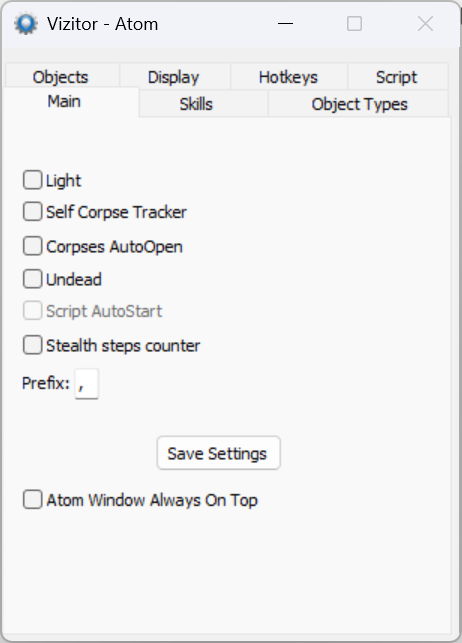
Per-character toggles and the command prefix.
Переключатели для персонажа и префикс команд.
| Option | What it does |
|---|---|
| Light | Forces a constant full-brightness view (runs light 0). Unchecking restores normal light (light). |
| Self Corpse Tracker | After you die, shows a quest arrow pointing to your own corpse. |
| Corpses AutoOpen | Automatically opens corpses. |
| Undead | Suppresses the death status sent to the client, so you keep a “living” appearance/view while dead. |
| Script AutoStart | Toggle for auto-starting the character’s assigned script (works together with the Script tab). |
| Stealth steps counter | Prints your remaining stealth steps. |
| Prefix | The command prefix character (default ,). See below. |
| Save Settings | Saves all Atom tabs’ settings for this character. |
| Atom Window Always On Top | Keeps the Atom window above other windows. |
The Prefix is the key that turns ordinary client chat into an Atom command. When you type a line in the client that starts with the prefix (default ,), Stealth strips the prefix and runs the rest as a command instead of sending it as speech.
For example, with prefix ,:
Prefix — это ключ, превращающий обычный текст в чате клиента в команду Atom. Когда вы вводите в клиенте строку, начинающуюся с префикса (по умолчанию ,), Stealth убирает префикс и выполняет остаток как команду, а не отправляет как речь.
Например, с префиксом ,:
,massmove 300
,info lastobject
,hide
The same commands can be bound to keys on the Hotkeys tab so you don’t have to type them.
Те же команды можно повесить на клавиши во вкладке Hotkeys, чтобы не вводить их вручную.
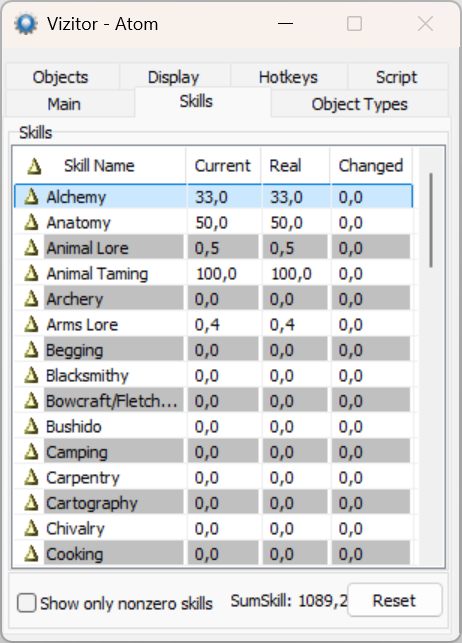
A live, read-only view of the character’s skills:
Живая таблица навыков персонажа (только для чтения):
- Current — the current (modified) skill value.
- Real — the base (real) skill value.
- Changed — change since the table was last reset.
- SumSkill — total of all skills.
- Show only nonzero skills — hides skills at
0. - Reset — resets the Changed tracking baseline.
This tab mirrors the same data available to scripts via the skill API (e.g. GetSkillValue).
Эта вкладка отражает те же данные, что доступны скриптам через API навыков (например, GetSkillValue).
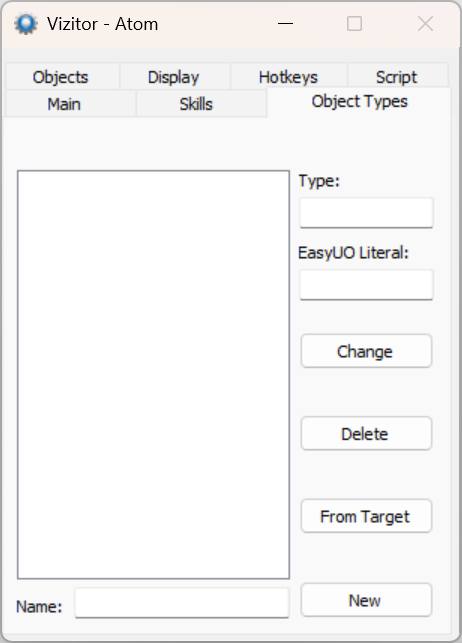
Define named, reusable object-type aliases. A type is an item graphic (object type); giving it a name lets you refer to it conveniently.
Задаёт именованные многоразовые псевдонимы типов объектов. Тип — это графика предмета (object type); присвоив ему имя, на него удобно ссылаться.
| Field / Button | Meaning |
|---|---|
| Name | A friendly name for this type. |
| Type | The object type (graphic id). |
| EasyUO Literal | The EasyUO-style literal mapping for the type. |
| From Target | Fill the type by targeting an object in-game. |
| New / Change / Delete | Add a new alias, update the selected one, or remove it. |
These named types feed the type-based commands (such as usetype) and the Display caption rules.
Эти именованные типы используются в командах по типу (например, usetype) и в правилах подписей вкладки Display.
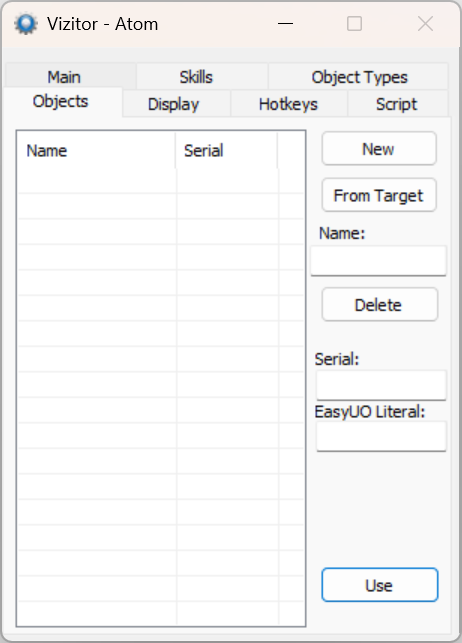
Bookmark specific objects by serial under a friendly name — useful for fixed containers, runebooks, recall runes, your bank, and so on.
Закладки конкретных объектов по серийному номеру под понятным именем — удобно для постоянных контейнеров, рунбуков, рун, банка и т.п.
| Field / Button | Meaning |
|---|---|
| Name | A friendly name for this object. |
| Serial | The object’s serial number. |
| EasyUO Literal | The EasyUO-style literal for the object. |
| From Target | Capture the serial by targeting an object in-game. |
| New / Delete | Add a bookmark or remove the selected one. |
| Use | Use (double-click) the selected object. |
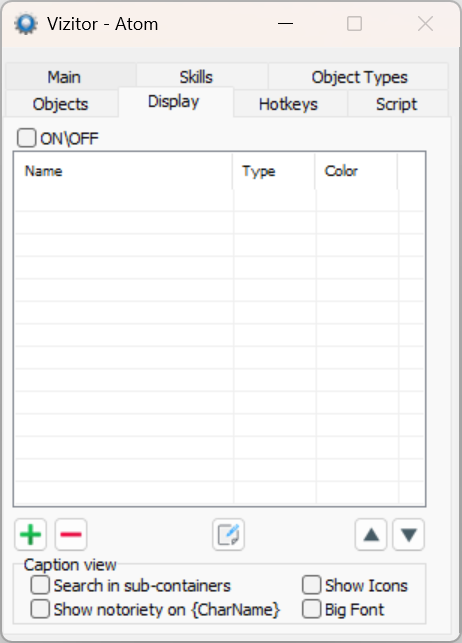
The Display tab controls overhead captions — custom text drawn above objects and characters in the client. You define a list of caption rules; each rule targets a type of object and renders a text template.
Вкладка Display управляет подписями над объектами — произвольным текстом, отрисованным над объектами и персонажами в клиенте. Вы задаёте список правил подписей; каждое правило нацелено на тип объекта и отображает текстовый шаблон.
- ON\OFF — master switch for the whole caption system.
- The list shows each rule’s Name (template), Type, and Color.
- ➕ / ➖ — add a new rule / delete the selected one.
- ✎ (edit) — edit the selected rule.
- ▲ / ▼ — reorder rules (order affects draw priority).
Caption view options:
- Search in sub-containers — also caption items inside nested containers.
- Show Icons — draw item icons alongside captions.
- Show notoriety on {CharName} — color the character-name caption by notoriety.
- Big Font — use a larger font.
Adding or editing a rule (➕ / ✎) opens this dialog:
Добавление или редактирование правила (➕ / ✎) открывает этот диалог:
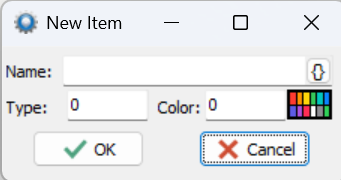
| Field | Meaning |
|---|---|
| Name | The caption template (text + {tokens}). The {} button opens the token menu. |
| Type | The object type (graphic) this rule applies to. |
| Color | The caption hue (click the palette to pick). |
The Name template works exactly like the hotkey command templates: plain text is shown as-is, and every {token} is replaced live with the matching character/object value. The {} button groups all tokens into submenus:
Шаблон Name работает ровно так же, как шаблоны команд хоткеев: обычный текст показывается как есть, а каждый {токен} на лету заменяется соответствующим значением персонажа/объекта. Кнопка {} группирует все токены по подменю:
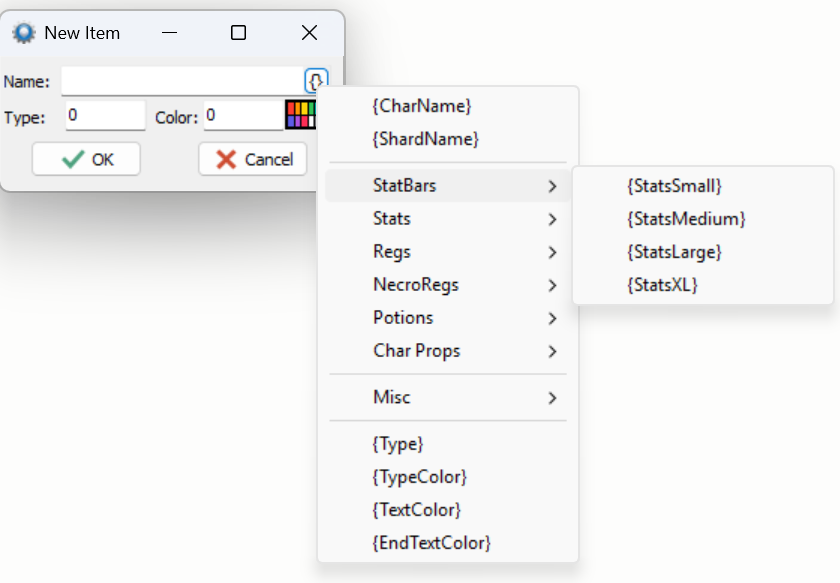
| Group | Tokens | Inserts |
|---|---|---|
| Identity | {CharName}, {ShardName} |
Character name / shard name. |
| StatBars | {StatsSmall}, {StatsMedium}, {StatsLarge}, {StatsXL} |
A graphical HP / Mana / Stamina bar, in four sizes. |
| Stats | {HP} {Stam} {Mana} {HPMax} {StamMax} {ManaMax} {Str} {Dex} {Int} |
Numeric stat values. |
| Regs | {BloodMoss} {Garlic} {MandrakeRoot} {SulfurousAsh} {BlackPerl} {Ginseng} {Nightshade} {SpidersSilk} |
Reagent counts in the backpack. |
| NecroRegs | {GraveDust} {NoxCrystal} {PigIron} {DaemonBlood} {Batwing} {DragonsBlood} {WyrmsHeart} {DeadWood} {FertileDirt} |
Necromancer reagent counts. |
| Potions | {HealPotions} {ManaPotions} {CurePotions} {RefreshPotions} |
Potion counts. |
| Char Props | {ArmorRating} {Weight} {MaxWeight} {Gold} {luck} {damage} {fireresist} {coldresist} {poisonresist} {energyresist} {physresist} {TithingPoints} {CharPosXY} {CharPosGrad} |
Armor, weight, gold, luck, damage range, resists, tithing points, position (X:.. Y:..) and position-with-direction. |
| Misc | {Bandages} {Arrows} {Bolts} {StealthSteps} {StealthStepsTotal} {ActiveScripts} |
Backpack counts, stealth-step counters, running-scripts list. |
| Formatting | {Type} {TypeColor} {TextColor} … {EndTextColor} |
Insert the object’s type / type-with-color; wrap a text segment in the rule’s color ({TextColor}…{EndTextColor}). |
Example template:
{CharName} {StatsSmall} HP:{HP}/{HPMax}
draws the name, a small status bar, and a numeric HP readout above the character.
рисует над персонажем имя, маленькую статус-полосу и числовой показатель HP.
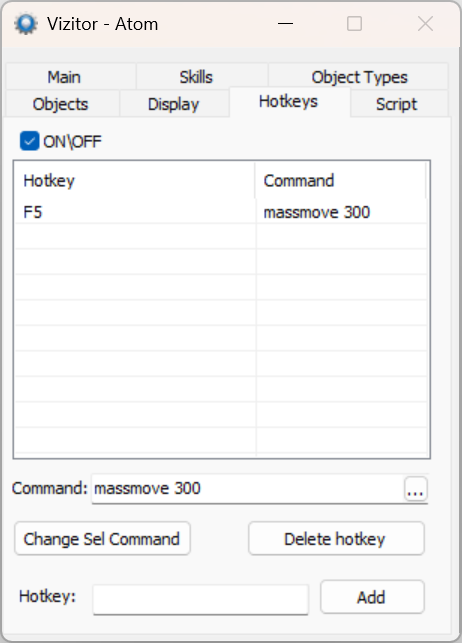
The Hotkeys tab binds a keyboard key to a command, a script method, or a system action. This is the most feature-dense tab.
Вкладка Hotkeys привязывает клавишу к команде, методу скрипта или системному действию. Это самая насыщенная вкладка.
- ON\OFF — master switch for the entire hotkey system.
- The list shows each Hotkey and the Command it runs.
- Command: field — the command text to run.
...button — opens the command menu (see below).- Hotkey: field — press the key combination to capture it.
- Add — bind the current Command to the current Hotkey.
- Change Sel Command — replace the command of the selected row.
- Delete hotkey — remove the selected binding.
-
Put a command in Command: (type it, or pick a template from the
...menu). -
Replace any parameter placeholders with real values (see below).
-
Click the Hotkey: field and press the desired key.
-
Click Add.
-
Впишите команду в поле Command: (вручную или выбрав шаблон из меню
...). -
Замените имена параметров реальными значениями (см. ниже).
-
Кликните поле Hotkey: и нажмите нужную клавишу.
-
Нажмите Add.
The ... button opens a menu of ready-made commands. Selecting one inserts its usage template into the Command field.
Кнопка ... открывает меню готовых команд. Выбор пункта вставляет его шаблон использования в поле Command.
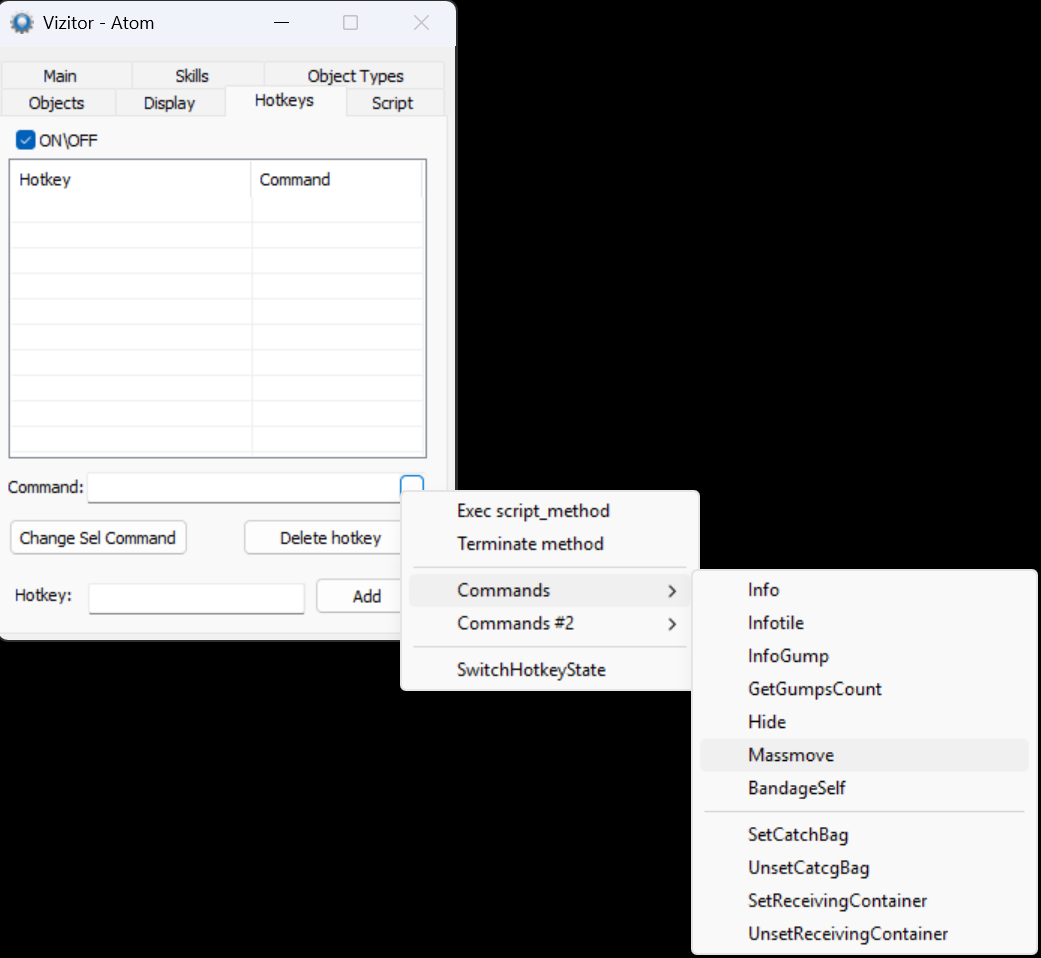
The top of the menu has three special entries:
В верхней части меню три особых пункта:
- Exec script_method — run a function of the attached script by hotkey.
- Terminate method — stop a running script method (or all of them).
- SwitchHotkeyState — toggle the entire hotkey system on/off (same as the ON\OFF box).
The Commands and Commands #2 submenus list the built-in commands documented in the command reference below.
Подменю Commands и Commands #2 содержат встроенные команды, описанные в справочнике команд ниже.
This is the part that trips people up. When you pick a command from the menu, Stealth inserts a usage template — and that template uses parameter names as placeholders, not real values. You must replace each placeholder with an actual value before the command will work.
Именно здесь чаще всего ошибаются. Когда вы выбираете команду из меню, Stealth вставляет шаблон использования — и в этом шаблоне стоят имена параметров как заглушки, а не реальные значения. Перед работой команды каждую заглушку нужно заменить на конкретное значение.
Notation / Нотация:
| In the template | Meaning |
|---|---|
delay_ms, objtype, amount (bare word) |
Required parameter — replace with your value. |
[maxitems], [color] (in brackets) |
Optional — may be omitted. |
a/b/c or a|b |
Alternatives — choose one. |
lastobject, lasttarget, lastcontainer, lasttile |
Literal keywords — the last clicked / targeted object / tile. |
This is exactly the case from the screenshots. You pick Massmove, which inserts:
Это в точности случай со скриншотов. Вы выбираете Massmove, что вставляет:
massmove delay_ms [maxitems],[color]
If you bind that to a key as-is and press it, Stealth tries to read delay_ms as a number, fails, and prints:
Если повесить это на клавишу как есть и нажать, Stealth пытается прочитать delay_ms как число, не может и выводит:
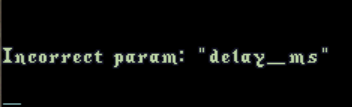
Incorrect param: "delay_ms"
The fix is to replace delay_ms with an actual delay (and, optionally, the bracketed parameters):
Решение — заменить delay_ms на реальную задержку (и, по желанию, параметры в скобках):
massmove 300            ← delay only (maxitems/color omitted)
massmove 300 100,0      ← delay 300 ms, max 100 items, color 0
With a valid command bound, the Hotkeys list shows the working command (e.g. massmove 300) and the key fires it without error.
С корректной командой список Hotkeys показывает рабочую команду (например, massmove 300), и клавиша выполняет её без ошибок.
All built-in commands. Every command can be run either as a hotkey or by typing <prefix>command in client chat (see the prefix). In the templates, bracketed items are optional; target means name|serial / lastobject / lasttarget / lastcontainer.
Все встроенные команды. Любую можно выполнить как хоткей или вводом <префикс>команда в чате клиента (см. префикс). В шаблонах элементы в скобках опциональны; target означает name|serial / lastobject / lasttarget / lastcontainer.
Commands
| Command | Template | What it does |
|---|---|---|
info |
info [target] |
Print info about an object. |
infotile |
infotile [lasttile] |
Print info about a map tile. |
infogump |
infogump |
Print info about open gump(s). |
getgumpscount |
getgumpscount |
Print the number of open gumps. |
hide |
hide [target] |
Hide an object/character locally. |
massmove |
massmove delay_ms [maxitems],[color] |
Mass-move items (delay in ms required). |
bandageself |
bandageself |
Apply a bandage to yourself. |
setcatchbag |
setcatchbag [target] |
Set the catch bag. |
unsetcatchbag |
unsetcatchbag |
Clear the catch bag. |
setreceivingcontainer |
setreceivingcontainer [target] |
Set the receiving container. |
unsetreceivingcontainer |
unsetreceivingcontainer |
Clear the receiving container. |
Commands #2
| Command | Template | What it does |
|---|---|---|
emptycontainer |
emptycontainer delay [containerobject] [receivingcontainerobject] |
Empty a container into another. |
grab |
grab [quantity] [target] |
Grab items into your backpack. |
drophere |
drophere [target] |
Drop the item at your feet. |
morph |
morph objtype |
Morph into the given body/type. |
useobject |
useobject object/lastobject/lasttarget/lastcontainer |
Use (double-click) an object. |
usetype |
usetype type/lasttarget/lastobject [color] |
Use the first object of a type. |
usefromground |
usefromground type/lasttarget/lastobject [color] |
Use an object of a type from the ground. |
light |
light [amount] |
Set light level (0 = full bright; no amount = reset). |
Script & system
| Entry | Template | What it does |
|---|---|---|
| Exec script_method | Exec script_method |
Run a function of the attached script. |
| Terminate method | Terminate all\script_method |
Terminate a running method (or all). |
| SwitchHotkeyState | SwitchHotkeyState |
Toggle the whole hotkey system on/off. |
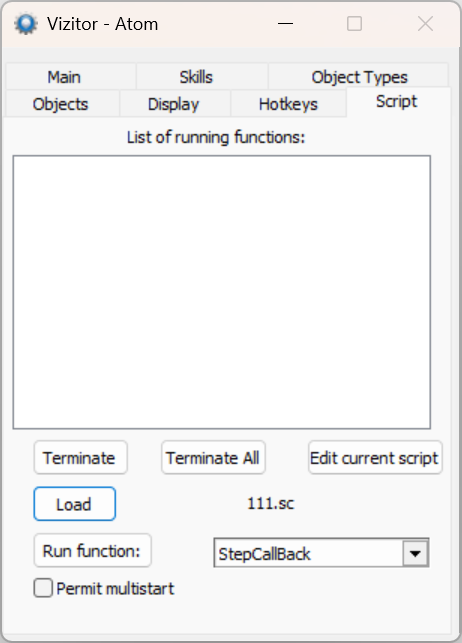
Control the script attached to this character.
Управление скриптом, привязанным к этому персонажу.
| Control | What it does |
|---|---|
| List of running functions | Currently executing script functions. |
| Terminate | Stop the selected running function. |
| Terminate All | Stop all running functions. |
| Edit current script | Open the script in the editor. |
| Load | Load a script file (the loaded file name is shown next to it). |
| Run function | Pick a function from the dropdown and run it. |
| Permit multistart | Allow the same function to be started more than once at a time. |
This tab pairs with Script AutoStart on the Main tab and with the Exec script_method / Terminate method hotkey actions.
Эта вкладка работает в связке с Script AutoStart на вкладке Main и с действиями хоткеев Exec script_method / Terminate method.
Atom settings are per character. After changing tabs (hotkeys, captions, bookmarks, toggles), click Save Settings on the Main tab to persist them so they are restored next time the character connects.
Настройки Atom хранятся для каждого персонажа. После изменений на вкладках (хоткеи, подписи, закладки, переключатели) нажмите Save Settings на вкладке Main, чтобы сохранить их и восстановить при следующем подключении персонажа.